First, this is not going to be a step by step guide. There are plenty of posts on the internet how to do it but this is why you have to do things a particular way.
I really like using the terminal but especially for things like Proxmox, I also really like keeping it to the UI where I can and just use the terminal where I have to.
Let’s assume I already have my Synology mounted in the Proxmox system which is really easy to do in the UI and perhaps a lot simpler.
So, the mount directory in Proxmox is /mnt/pve/synology-backup-storage
Now, in the UI, I could click on the server that is my LXC container > Resources > Add > Mount Point and I would see the this on the screen.
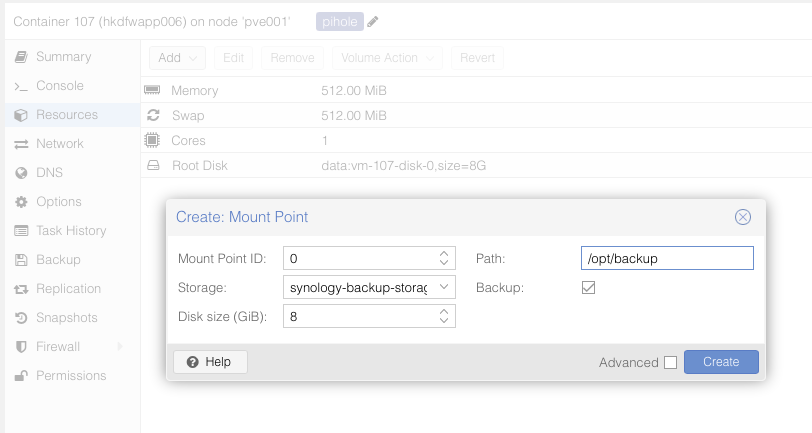
This could be useful but what it’s going to do is create a disk image on Synology 8GB in size which will contain any files you save into /opt/backup
but you cannot, if not easily, see what those files are from Synology.
Proxmox does not seem to have a way to specifically just mount the directory directly, so you kind of have to do some work manually editing the config file.
In this case, my VM ID is 107, so I am going to open up the console for my proxmox node where the synology mount above is located.
vim or nano /etc/pve/lxc/107.conf
Change or add the line, mp0: /mnt/pve/synology-backup-storage/,mp=/opt/backup
I did not add any mount options but you absolutely can but you’ll notice the first part of the mount point is the mount point where synology is nounted to the node, then the mp= is the directory where you want it in the LXC container.
I hope this helps, it really threw me why everyone insisted on showing doing everything in the terminal but never really explained why.